For many small business owners, accounting can feel like a complicated, confusing task. Fortunately, cloud accounting software like Xero takes much of the hassle out of managing financial transactions. But have you ever wondered what happens behind the scenes when Xero processes your transactions? What Happens Behind the Scenes: How Xero Manages Your Transactions
This article will demystify how Xero manages your transactions from bank feeds to reconciliation, invoicing, and reporting. Understanding these processes will help you leverage Xero’s powerful features to keep your business finances accurate and up to date.
What is a Transaction in Xero?
Before diving into how Xero manages transactions, it’s important to understand what a “transaction” means in accounting terms. Simply put, a transaction is any financial activity involving money moving in or out of your business. This includes:
- Sales and customer payments
- Supplier bills and payments
- Bank deposits and withdrawals
- Expense claims
- Payroll payments
Xero captures all these types of transactions and organizes them in your accounting records.
How Xero Imports Transactions: The Role of Bank Feeds
One of Xero’s most powerful features is its automatic bank feed capability. This is how Xero gets your transaction data:
- Secure Connection: Xero connects securely to your bank or financial institution using encrypted connections that protect your data.
- Automatic Import: Your bank transactions—such as deposits, withdrawals, and card payments—are imported directly into Xero, usually within 24 hours of posting.
- Real-Time Updates: Some banks provide near real-time feeds, allowing you to monitor your cash flow as transactions happen.
This automation eliminates the need for manual data entry and reduces errors, saving time and increasing accuracy.
How Xero Categorizes Transactions Automatically
After importing transactions, Xero uses smart technology to categorize them correctly:
- Bank Rules: You can create rules in Xero that automatically classify certain transactions based on criteria like description, amount, or payee. For example, all transactions from your utility provider can be categorized under “Utilities Expense.”
- Machine Learning: Xero learns from your past actions and suggests categories for recurring transactions, speeding up reconciliation.
- Transaction Matching: Xero attempts to match bank feed transactions with invoices or bills already entered in the system. If a match is found, it links them to avoid duplication.
These features help maintain an organized ledger with minimal manual input.
The Reconciliation Process: Balancing Your Accounts
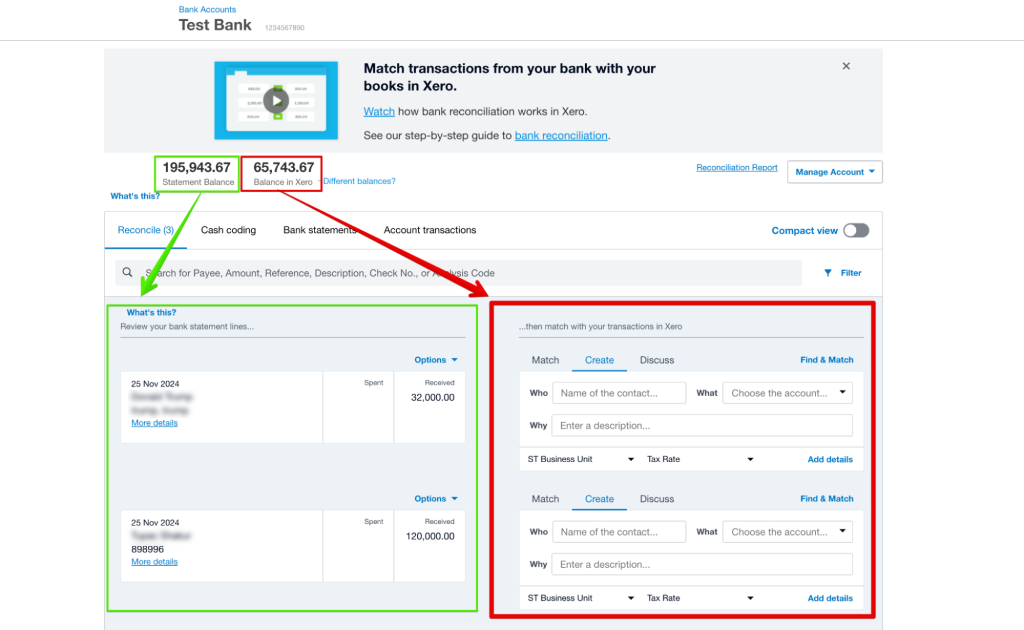
Reconciliation is a critical step where your bank statements are matched against your accounting records to ensure consistency. Here’s how Xero handles it:
- Review Imported Transactions: You review the imported transactions and confirm or adjust Xero’s suggested matches.
- Match or Create Transactions: If a bank feed transaction matches an invoice or bill, you approve it. If no match exists, you can create a new transaction directly from the reconciliation screen.
- Split Transactions: For complex entries like expenses partly paid from different sources, Xero allows you to split transactions for precise accounting.
- Track Unreconciled Items: Xero flags any discrepancies or unreconciled transactions, so you can investigate and correct issues promptly.
By regularly reconciling your accounts in Xero, you ensure your financial data is accurate and ready for reporting or tax submission.
Invoicing and Payment Tracking in Xero
Managing customer invoices is a key part of your transaction flow. Xero simplifies this by:
- Creating Professional Invoices: Customize invoice templates with branding, payment terms, and due dates.
- Sending Invoices Electronically: Email invoices directly to customers from Xero, increasing efficiency.
- Tracking Invoice Status: Xero updates invoice statuses automatically — whether sent, viewed, paid, or overdue.
- Online Payment Integration: Customers can pay invoices online via integrated payment gateways like Stripe or PayPal, with payments recorded instantly.
This seamless invoicing-to-payment process helps maintain steady cash flow and accurate transaction records.
Handling Bills and Expense Transactions
On the expense side, Xero streamlines vendor bills and employee expenses:
- Bill Entry and Approval: Enter supplier bills into Xero and set approval workflows to control payments.
- Expense Claims: Employees can submit expense claims with receipt photos via the Xero mobile app.
- Payment Scheduling: Schedule bill payments and track due dates to avoid late fees.
- Automatic Matching: When payments are made, Xero matches them against the bills, completing the transaction cycle.
These steps help keep your outgoing transactions well-organized and transparent.
Payroll Transactions: Managing Employee Payments
For businesses that use Xero Payroll, employee payments are another critical transaction type managed behind the scenes:
- Salary and Wage Calculations: Xero calculates gross pay, deductions, taxes, and benefits automatically.
- Payslip Generation: Payslips are created and delivered electronically.
- Tax Filing: Payroll tax returns and compliance reports are generated automatically.
- Integration with Accounting: Payroll expenses and liabilities post directly to the appropriate accounts in Xero.
This integration ensures payroll transactions flow smoothly into your financial statements. What Happens Behind the Scenes: How Xero Manages Your Transactions
Reporting: Turning Transactions into Insights
All transactions recorded and reconciled in Xero feed into your financial reports, such as:
- Profit & Loss Statement
- Balance Sheet
- Cash Flow Statement
- Aged Receivables and Payables
Xero updates these reports in real time, giving you a clear and accurate picture of your business’s financial health. This helps with budgeting, forecasting, and strategic decision-making.
Security and Accuracy Behind Xero’s Transaction Management
Behind the scenes, Xero prioritizes security and data accuracy:
- Data Encryption: All transaction data is encrypted in transit and at rest.
- Two-Factor Authentication: Adds an extra layer of login security.
- Regular Backups: Cloud backups ensure your data is safe and recoverable.
- Audit Trails: Every transaction has a detailed history, showing edits and user activity for accountability.
These safeguards give you confidence that your financial data is secure and reliable.